First-time walkthrough
Start with image orderUpload the strongest opener first, then supporting visuals, then a clear closing image or CTA frame.
Step 1 of 3
Start here
Start with the user need first: add the problem, source material, or draft you already have, generate a useful first result, then decide whether to save, export, improve, or request human help.
AI tool workspace
Turn still images, product visuals, and design frames into short animated video outputs with prompt control, sequence planning, and export-ready drafts.
First-time walkthrough
Start with image orderUpload the strongest opener first, then supporting visuals, then a clear closing image or CTA frame.
Upload panel
Drag and drop JPG or PNG imagesFrame 1 | JPG
Frame 2 | PNG
Frame 3 | JPG
Payment route
Use the workspace or quote path first. Pay only when the output, subscription, deposit, or scoped delivery step is clear enough to approve.
Payment paths include direct PayPal Checkout where configured, a hosted PayPal fallback, and quote-first requests for custom builds. PayPal may support wallet payments plus eligible credit and debit cards.
Recommended UI model
Creative studio with scene cards, vertical-first preview, media controls, captions, and export settings.
Choose the lightest useful path
Best when the job is clear, the source material is ready, and a fast first result solves enough of the problem.
Best when the output affects a client, proposal, website, campaign, or decision that needs stronger judgment.
Best when the same task repeats, needs integrations, or should become a workflow, dashboard, automation, or internal tool.
Conversion path
Open the self-serve workspace when you need speed. Sign up to save progress, or move the same task into human-reviewed delivery when quality, approvals, integrations, or customer trust matters.
AI tool
Turn still images, product visuals, and design frames into short animated video outputs with prompt control, sequence planning, and export-ready drafts.
This page helps a buyer understand the job the tool solves, how it fits into a premium delivery flow, and when a bigger implementation path makes more sense than another isolated output.
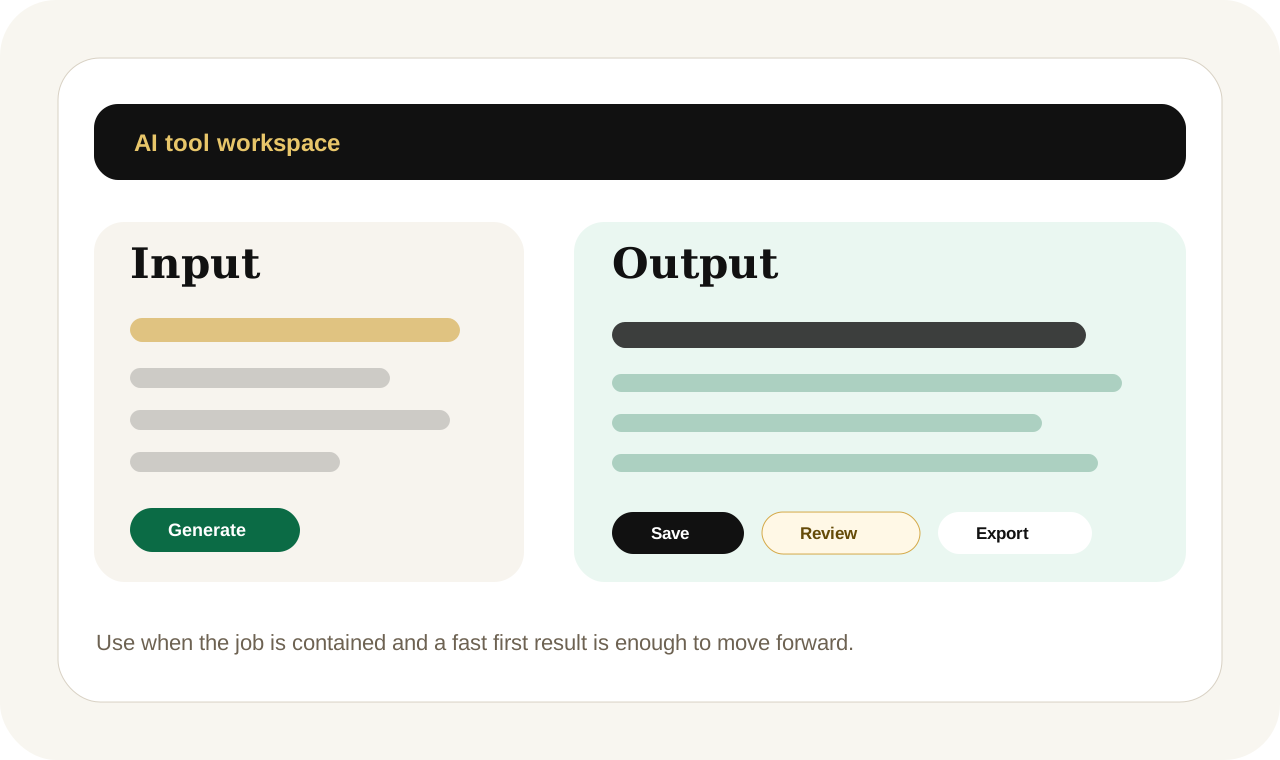
Focused tool session
This tool page shows how a focused AI output can start the work quickly while human judgment, formatting, and delivery support stay available when quality matters more.
Task in
Teams use Image to Video Converter when they need a cleaner first output without losing time to repetitive drafting, formatting, or manual cleanup.
Useful output
Image to Video Converter turns a brief, source material, and user intent into a more usable video creation output with clearer structure and next-step guidance.
Human escalation
Move into Project Desk when the task needs brand review, automation setup, or a broader implementation path.
What it creates
Image to Video Converter turns a brief, source material, and user intent into a more usable video creation output with clearer structure and next-step guidance.
Still-image animation workflow, Prompt-led motion control, Product and campaign scene sequencing, Premium export and variation packs.
Human-centered fit
Teams use Image to Video Converter when they need a cleaner first output without losing time to repetitive drafting, formatting, or manual cleanup.
The goal is to create immediate momentum while keeping the longer-term service and workflow paths obvious.
Who it helps
E-commerce teams, Creators, Agencies use this tool when they want a faster start, but still need a visible path into expert delivery if quality, approvals, or commercial risk becomes more important.
A distributed team opens Image to Video Converter to get a first draft, review it quickly, and decide whether the work should stay self-serve or move into a broader service path.
Human-delivered option
Start with this tool when you want speed. Move to Project Desk when the task needs automation setup, brand review, custom formatting, or a broader business workflow around the output.
Inputs
Escalation path
Use Image to Video Converter when the task is still contained. Move into Project Desk when the work touches approvals, revenue, delivery quality, integrations, or cross-team review.
Use the premium path when review quality, integrations, team approvals, or client-facing trust matter more than getting one fast draft.
Best when
This is the right route when the user knows what they need, wants momentum now, and still wants a page that explains the next upgrade path clearly.
Move on when
If the work keeps recurring or starts affecting operations, customers, or brand quality, use the workflow, automation, or expert-help path instead of treating the tool like the whole system.
FAQs
Image to Video Converter is built for video creation jobs where a fast first output saves time, gives the user a stronger starting point, and reduces repetitive manual work.
Use the tool when the task is well defined and you mainly need speed. Move into Project Desk when the workflow repeats, needs integration, or requires higher human review before delivery.
Yes. The self-serve route is designed to create momentum first, then hand the work into premium delivery when editing, workflow design, implementation, or expert review becomes necessary.
Related tools
Generate short-form videos, promo concepts, visual sequences, and script-led drafts from prompts, assets, and campaign goals in one guided workspace.